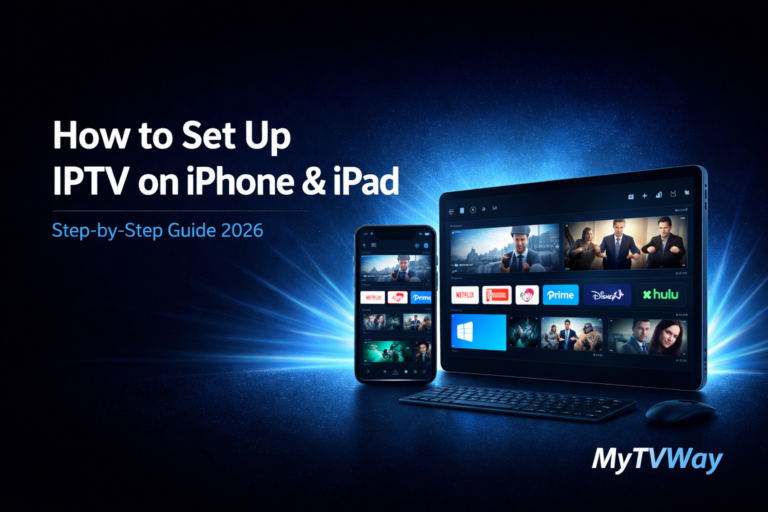
Looking for a simple IPTV iPhone setup guide? You’ve come to the right place. In this complete guide, we’ll show you exactly how to install IPTV on iPhone and iPad step by step — no technical knowledge required.
Whether you’re using an iPhone, iPad or iPod Touch, this iPhone IPTV tutorial will get you streaming in minutes. If you’re using a different device, check our Firestick setup guide, Android setup guide, Windows PC setup guide or Smart TV setup guide instead.
IPTV iPhone iPad Setup – Complete Guide 2026
Setting up IPTV on your iPhone or iPad is much easier than you think.
In this complete step-by-step guide, we’ll show you exactly how to install and configure your MyTVWay UK IPTV subscription on any iOS device in just a few minutes. No technical experience required!
Choosing the Right IPTV iPhone App
There are several IPTV iPhone apps available on the App Store. Here are the best ones:
- IBO Player Pro — Paid — Our recommended app with MAC address activation and M3U support for the best experience
- Smarters Player Lite — Free — The iOS version of IPTV Smarters Pro with Xtream Codes login support
- GSE Smart IPTV — Free — Popular IPTV player with M3U and Xtream Codes support
- IPTV Smarters Player — Free — Simple interface with multi-screen support
In this guide we will use IBO Player Pro as it offers the most reliable experience on iOS devices. We also show an alternative method using Smarters Player Lite below.
If you need help, contact us via WhatsApp.
What You Need Before Starting
- An iPhone, iPad or iPod Touch running iOS 14 or later
- A stable internet connection (minimum 20 Mbps recommended for HD, 30+ Mbps for 4K)
- An active MyTVWay UK IPTV subscription with your login credentials
Compatible iOS Devices
IPTV on iPhone and iPad works on all modern Apple devices including:
- iPhone 8 and newer (iPhone SE, iPhone X, 11, 12, 13, 14, 15, 16 series)
- iPad Air, iPad Mini, iPad Pro (all generations)
- iPod Touch (7th generation)
Step-by-Step: IPTV iPhone iPad Installation Guide
Step 1 — Download IBO Player Pro from the App Store
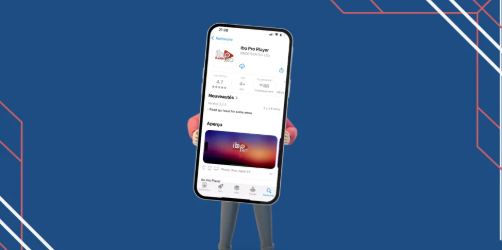
Open the App Store on your iPhone or iPad. Search for “IBO Player Pro” and tap Get to download.
Confirm the download with your Apple ID, Face ID or Touch ID. The app takes less than a minute to install. Once downloaded, tap Open to launch.
Step 2 — Note Your MAC Address and Device Key
When you first open IBO Player Pro, you’ll see a screen displaying your MAC address and Device Key. These are unique codes for your device.
You have two options to set up your IPTV:
Option A (Easiest): Send your MAC address and Device Key to our team via WhatsApp and we’ll activate your subscription for you. Simply send: “Hi, please activate my IBO Player Pro. MAC: [your MAC] Key: [your Key]”
Option B (Manual): Follow Steps 3-5 below to enter your credentials yourself.
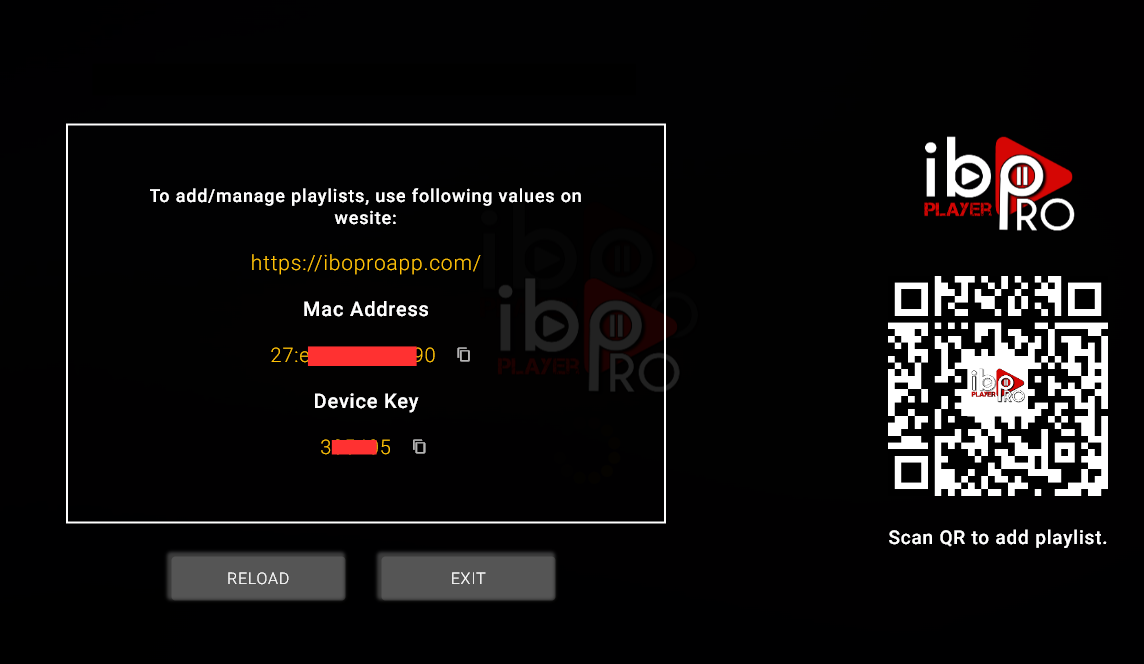
Step 3 — Add Your Playlist with M3U Login Details
If you prefer to set up manually, go to Settings in the app. Then tap Settings again, followed by Add Playlist.
Select “M3U File” as the playlist type and enter your MyTVWay login details:
- Playlist Name: Type anything you like (e.g. MyTVWay)
- M3U URL: Found in your confirmation email or WhatsApp message
Tap Save to store your playlist.
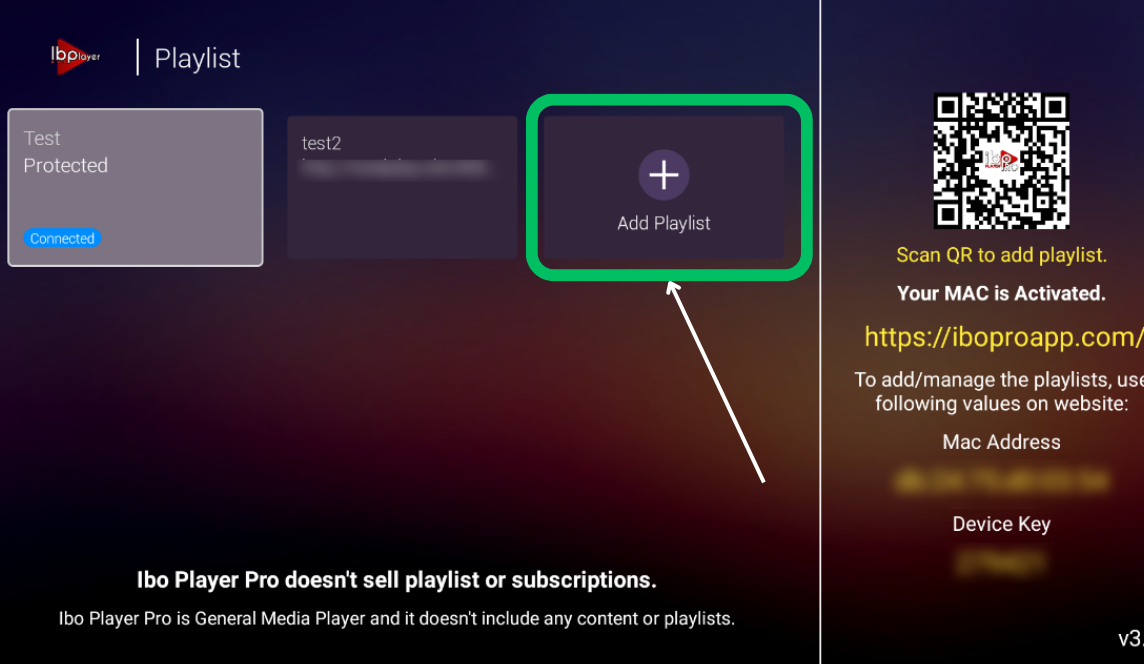
⚠️ If you see an error, double check the M3U URL. Make sure there are no extra spaces and that your VPN is turned off.
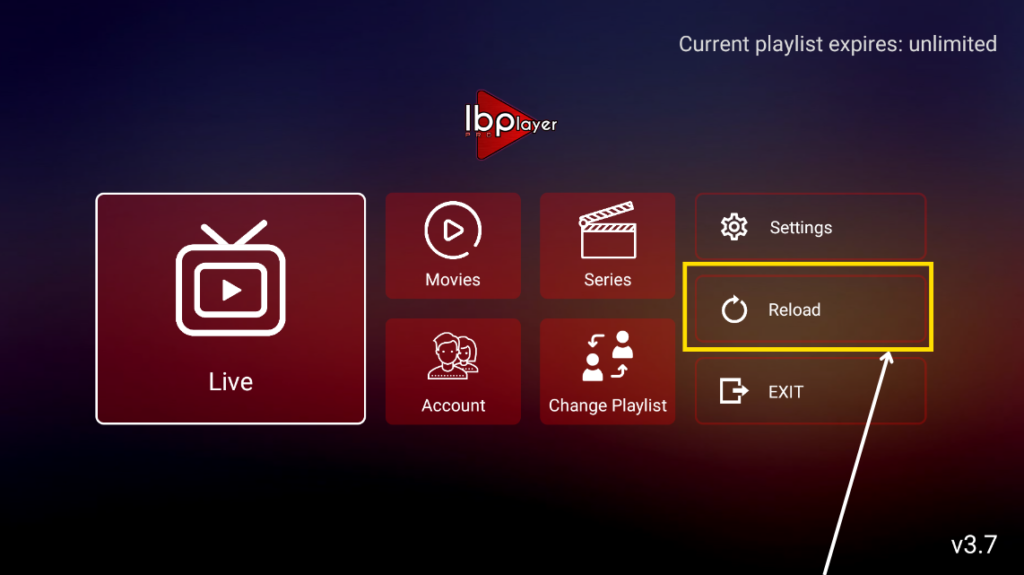
Step 4 — Restart the App and Click Reload
After saving your playlist, close IBO Player Pro completely. On iPhone, swipe up from the bottom and swipe the app away. On older iPhones, double-tap the home button and swipe up.
Reopen the app and tap the Reload button to refresh your playlist and load all channels.
Step 5 — Wait for Playlist to Process
IBO Player Pro will now process your playlist and load all channels. You’ll see a loading screen while the app fetches all 50,000+ live channels, 180,000+ movies and series from the MyTVWay servers.
This usually takes 15-30 seconds depending on your internet speed. Be patient — this only happens the first time or after a reload.

Step 6 — Enjoy Watching Live TV
Once your playlist is loaded, you’ll see all your content categories — Live TV, Movies, Series, Catch-Up TV and more.
Navigate to Live TV and browse the channel groups — UK Channels, US Channels, Sports, Movies, Kids, News, Music and many more. Tap on any channel to start streaming!
Rotate your iPhone or iPad to landscape mode for the best full screen viewing experience.
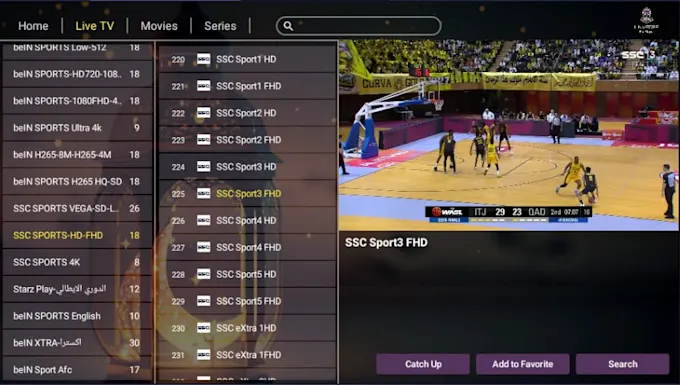
🎉 You’re All Set!
Congratulations! You have successfully set up IPTV on your iPhone or iPad. You now have access to 50,000+ live UK channels, 180,000+ movies and series in stunning quality with MyTVWay!
Video Tutorial — Alternative Setup with Smarters Player Lite
Want to use Smarters Player Lite instead? Here’s a quick video guide showing the alternative setup method using Xtream Codes login on iPhone:
Troubleshooting IPTV on iPhone and iPad
Having issues? Here are the most common problems and solutions:
- IBO Player Pro not loading playlist — Double check your M3U URL. Make sure there are no extra spaces. Close the app completely, reopen and tap Reload.
- MAC address activation not working — Send your MAC address and Device Key again via WhatsApp. Our team will verify and reactivate within minutes.
- Buffering or freezing — Ensure your internet speed is at least 20 Mbps. Try connecting to 5GHz Wi-Fi instead of 2.4GHz for better performance.
- App crashing on iPhone — Make sure you’re running the latest iOS version. Delete and reinstall IBO Player Pro from the App Store.
- No sound on some channels — Check that your iPhone is not on silent mode. Also try adjusting volume with the side buttons, not just the in-app controls.
Still need help? Contact our 24/7 support team via WhatsApp and we’ll guide you through every step.
Alternative IPTV Apps for iPhone and iPad
While IBO Player Pro is our recommended app, here are other great IPTV iPhone alternatives:
- Smarters Player Lite — Free iOS version of IPTV Smarters Pro. Login with Xtream Codes API for easy setup. See video tutorial above.
- GSE Smart IPTV — Popular free player with M3U and JSON playlist support. Built-in EPG and favourites.
- IPTV Smarters Player — Simple and clean interface with multi-screen viewing support on iPad.
All of these apps work with your MyTVWay UK IPTV subscription. Simply use the same login credentials or M3U URL provided after purchase.
Why Choose MyTVWay for IPTV on iPhone and iPad?
MyTVWay is the best UK IPTV service for IPTV iPhone and iPad users. Our subscription gives you access to 50,000+ live channels, 180,000+ movies and series in stunning quality.
Watch your favourite UK channels anywhere — on the train, at work, or in bed. With Anti-Freeze technology and 99.99% uptime, you’ll enjoy smooth streaming on your iOS device every time.
Our plans start from just £11.99/month with instant activation and a 7-day money back guarantee. Get your MyTVWay IPTV iPhone subscription today!
Looking for setup guides for other devices? Check our UK IPTV installation guide for instructions on Firestick, Android, Windows PC, Smart TV, Mac and more.
Ready to Start Streaming UK IPTV?
Get your MyTVWay subscription today — 50,000+ channels, instant activation, 7-day money back guarantee.
Get Your UK IPTV Plan from £11.99