Looking for a simple IPTV Mac setup guide? You’ve come to the right place. In this complete guide, we’ll show you exactly how to install IPTV on Mac step by step using IINA player — no technical knowledge required.
Whether you’re using a MacBook Air, MacBook Pro, iMac, Mac Mini or Mac Studio, this Mac IPTV tutorial will get you streaming in minutes. If you’re using a different device, check our Firestick setup guide, Android setup guide, Windows PC setup guide, Smart TV setup guide or iPhone iPad setup guide instead.
IPTV Mac Setup – Complete Guide 2026
Setting up IPTV on your Mac is much easier than you think.
In this complete step-by-step guide, we’ll show you exactly how to install and configure your MyTVWay UK IPTV subscription on any Mac in just a few minutes using IINA player. No technical experience required!
Choosing the Right IPTV Mac App
There are several IPTV Mac apps available. Here are the best ones for macOS:
- IINA Player — Free — Our recommended app, native macOS design with M3U support and modern interface
- VLC Media Player — Free — Universal player that works on every Mac model with M3U streaming support
- IPTV Smarters Pro for Mac — Free — Popular IPTV player with Xtream Codes API support and EPG
- Smarters Player Lite — Free — Available from the Mac App Store for Apple Silicon Macs (M1, M2, M3)
- Infuse Pro — Paid — Premium media player with beautiful interface and AirPlay support
- IBO Player Pro — Paid — MAC address activation with M3U and Xtream Codes support
In this guide we will use IINA Player as it offers the best native Mac experience with a clean interface and excellent M3U support. It’s completely free and lightweight.
If you need help choosing the right app or setting up, contact us via WhatsApp — our team is available 24/7 to assist you for free.
What You Need Before Starting
- A Mac running macOS 12.0 or later (Apple Silicon) or macOS 10.15 or later (Intel Mac)
- A stable internet connection (minimum 20 Mbps recommended for HD, 30+ Mbps for 4K)
- An active MyTVWay UK IPTV subscription with your M3U URL
Compatible Mac Models
IPTV on Mac works on all modern Apple computers including:
- MacBook Air (Intel and Apple Silicon M1, M2, M3)
- MacBook Pro (Intel and Apple Silicon M1, M2, M3, M4)
- iMac (all generations from 2015 onwards)
- Mac Mini (Intel and Apple Silicon)
- Mac Studio
- Mac Pro
Step-by-Step: IPTV Mac Installation Guide
Step 1 — Download IINA Player
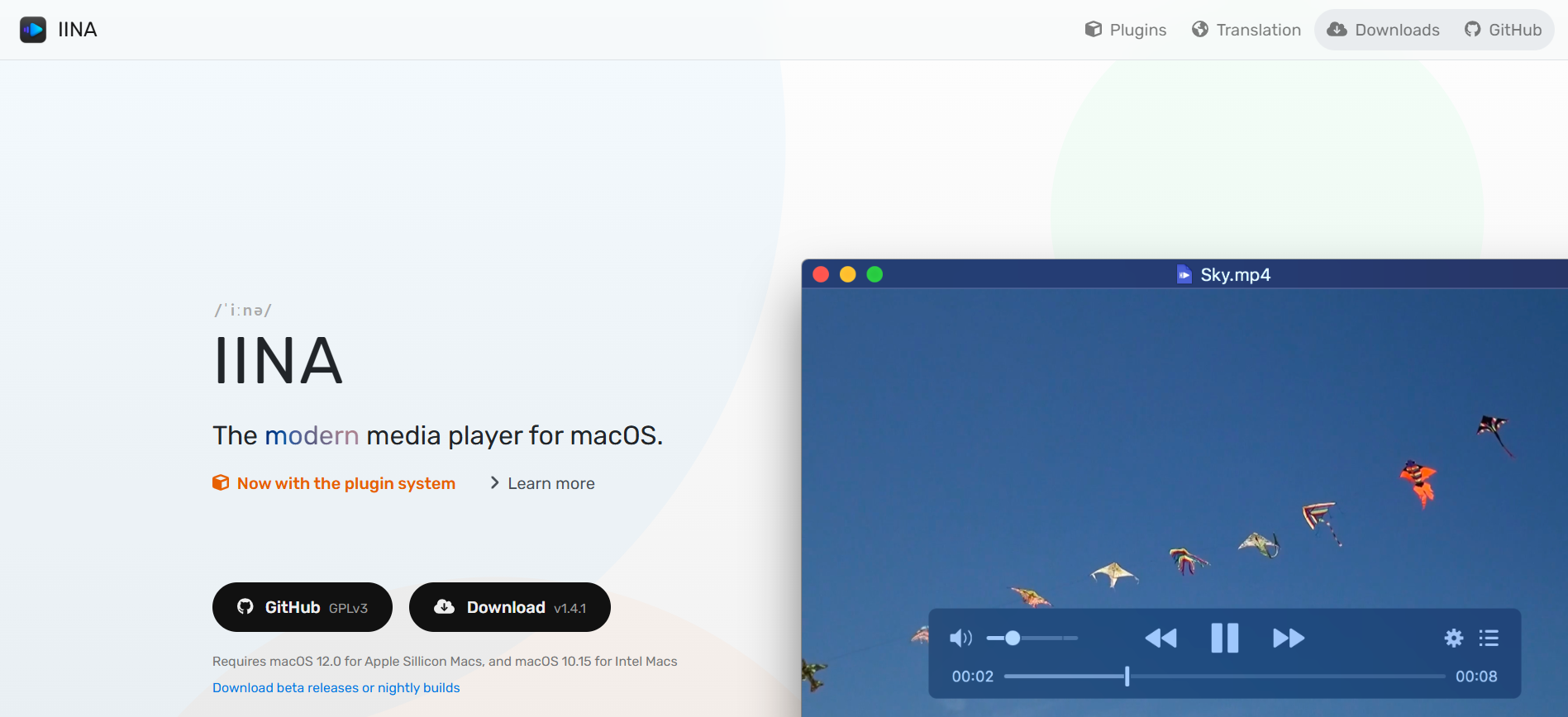
Open Safari or your preferred browser and visit the official IINA website at iina.io. Click the Download button to get the latest version.
Once downloaded, open the DMG file from your Downloads folder and drag IINA into your Applications folder.
⚠️ System requirements: macOS 12.0 for Apple Silicon Macs, macOS 10.15 for Intel Macs.
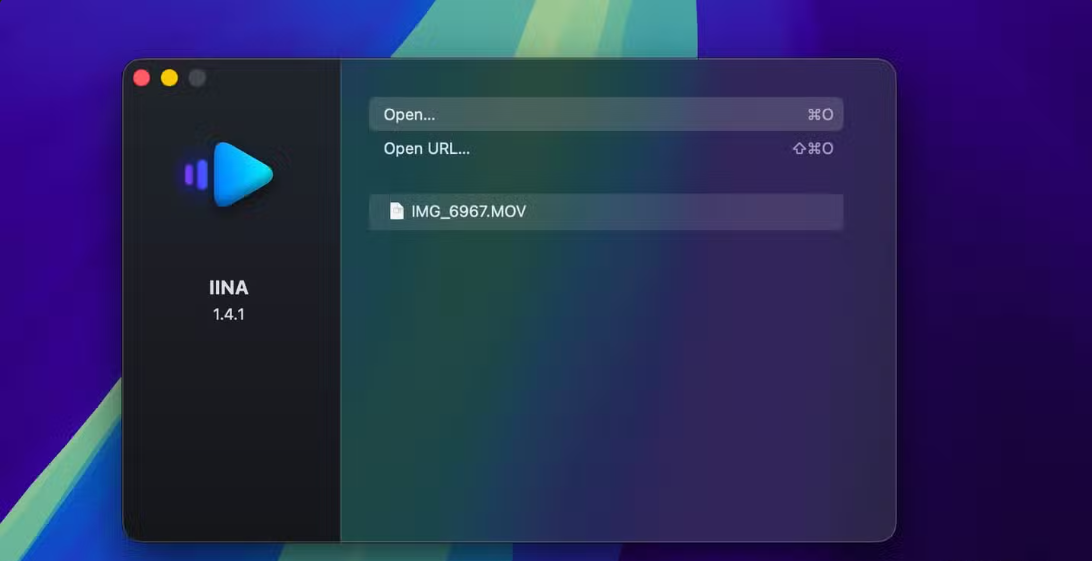
Step 2 — Launch IINA and Open URL
Open IINA from your Applications folder or Launchpad. The welcome window appears with two options:
- Open… (⌘O) — to open a local file
- Open URL… (⇧⌘O) — to open an M3U link
Click on Open URL… to continue.
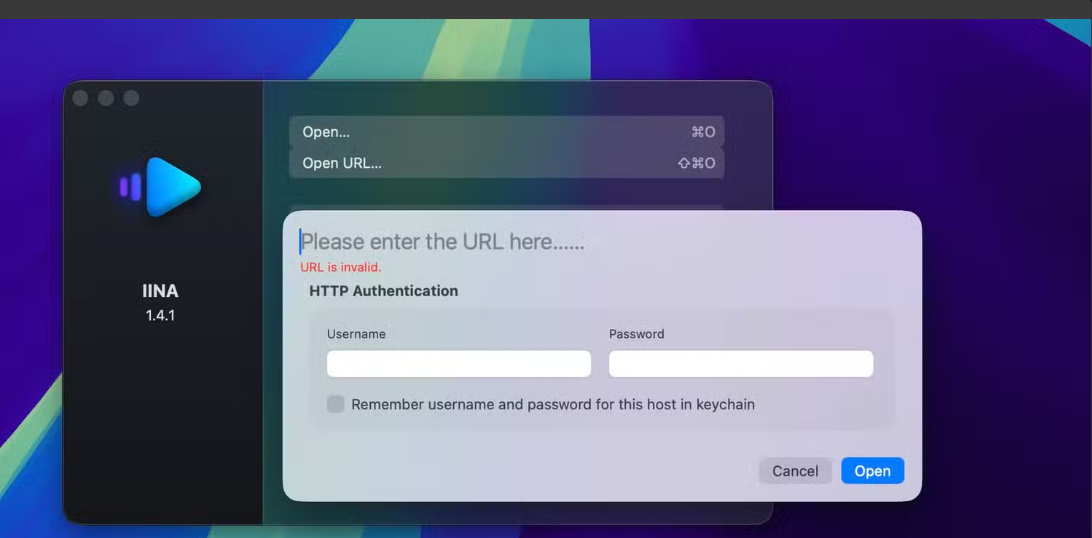
Step 3 — Paste Your MyTVWay M3U URL
A dialog window opens with the field “Please enter the URL here…”. Paste your MyTVWay M3U link that you received after subscribing.
Leave the Username and Password fields empty — authentication is already included in the link. Click Open to load your channels.
⚠️ Your M3U link must start with http:// or https://, otherwise you’ll get an “URL is invalid” error.
Step 4 — Enjoy Watching Live TV
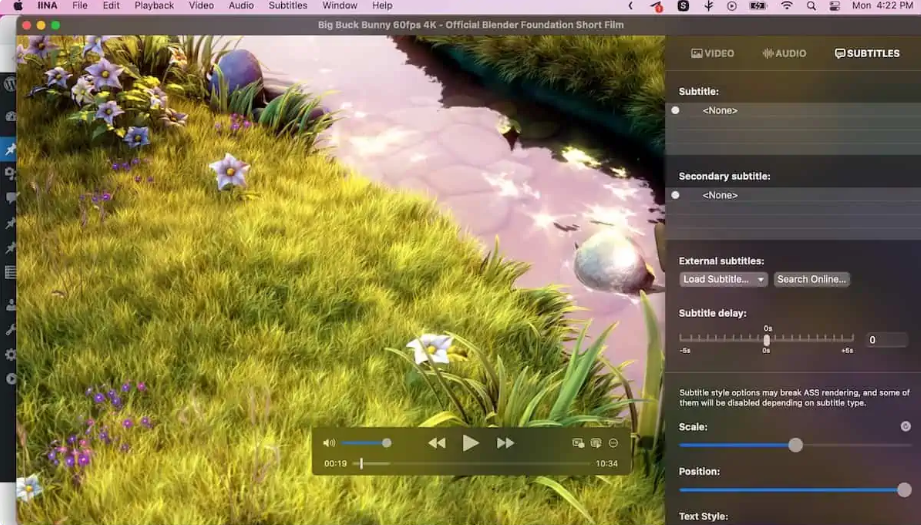
IINA will load your MyTVWay playlist and start streaming. You’ll see the standard player controls — Play, Pause, Forward — at the bottom of the screen.
On the right side, you have multiple tabs:
- VIDEO — quality and display settings
- AUDIO — audio tracks and language selection
- SUBTITLES — load, adjust delay, customize style
Press ⌘F for full screen mode and enjoy your UK IPTV in stunning quality!
🎉 You’re All Set!
Congratulations! You have successfully set up IPTV on your Mac. You now have access to 50,000+ live UK channels, 180,000+ movies and series in stunning quality with MyTVWay!
Need Help with Setup? We’re Here!
If you encounter any issue during the setup or if you’d prefer to have our team set it up for you, simply contact us via WhatsApp. Our 24/7 support team will guide you step by step or even do the entire setup remotely for free.
We can help you with:
- Choosing the best IPTV app for your Mac model
- Installing and configuring IINA, VLC or any other player
- Troubleshooting playback issues
- Setting up EPG and favourites
- Optimizing your stream quality
Don’t hesitate — our team loves helping new users get started!
Troubleshooting IPTV on Mac
Having issues? Here are the most common problems and solutions:
- “URL is invalid” error — Make sure your M3U link starts with http:// or https:// and there are no extra spaces.
- Buffering or freezing — Ensure your internet speed is at least 20 Mbps. Use ethernet via USB-C adapter for the most stable connection.
- IINA won’t open — Right-click IINA in Applications and select “Open” to bypass macOS security warning. Allow it in System Settings then Privacy and Security.
- No sound — Click the AUDIO tab in IINA and check the audio track. Also verify your Mac volume and selected output device.
- Channels not loading — Your M3U link might have expired. Contact us via WhatsApp to verify your subscription status.
Still need help? Contact our 24/7 support team via WhatsApp and we’ll guide you through every step.
Alternative IPTV Apps for Mac
While IINA is our recommended app, here are other great IPTV Mac alternatives:
- VLC Media Player — Universal free player. Open VLC then File then Open Network and paste your M3U URL to start streaming.
- IPTV Smarters Pro for Mac — Download the macOS version from the official website. Login with Xtream Codes API for full EPG support.
- Smarters Player Lite — Available from the Mac App Store for Apple Silicon Macs (M1, M2, M3). Native iOS app running on macOS.
- Infuse Pro — Premium player with stunning interface and AirPlay support to Apple TV. Subscription required.
- IBO Player Pro — MAC address activation with M3U and Xtream Codes support. Send us your MAC and we’ll activate it.
All of these apps work with your MyTVWay UK IPTV subscription. Contact us via WhatsApp if you need help with any alternative app.
Why Choose MyTVWay for IPTV on Mac?
MyTVWay is the best UK IPTV service for IPTV Mac users. Our subscription gives you access to 50,000+ live channels, 180,000+ movies and series in 4K/8K quality.
Watch your favourite UK channels on your MacBook anywhere — at home, at the office, or on the go. With Anti-Freeze technology and 99.99% uptime, you’ll enjoy smooth streaming on macOS every time.
Our plans start from just £11.99/month with instant activation and a 7-day money back guarantee. Get your MyTVWay IPTV Mac subscription today!
Looking for setup guides for other devices? Check our UK IPTV installation guide for instructions on Firestick, Android, Windows PC, Smart TV, iPhone and iPad and more.
Ready to Start Streaming UK IPTV?
Get your MyTVWay subscription today — 50,000+ channels, instant activation, 7-day money back guarantee.
Get Your UK IPTV Plan from £11.99