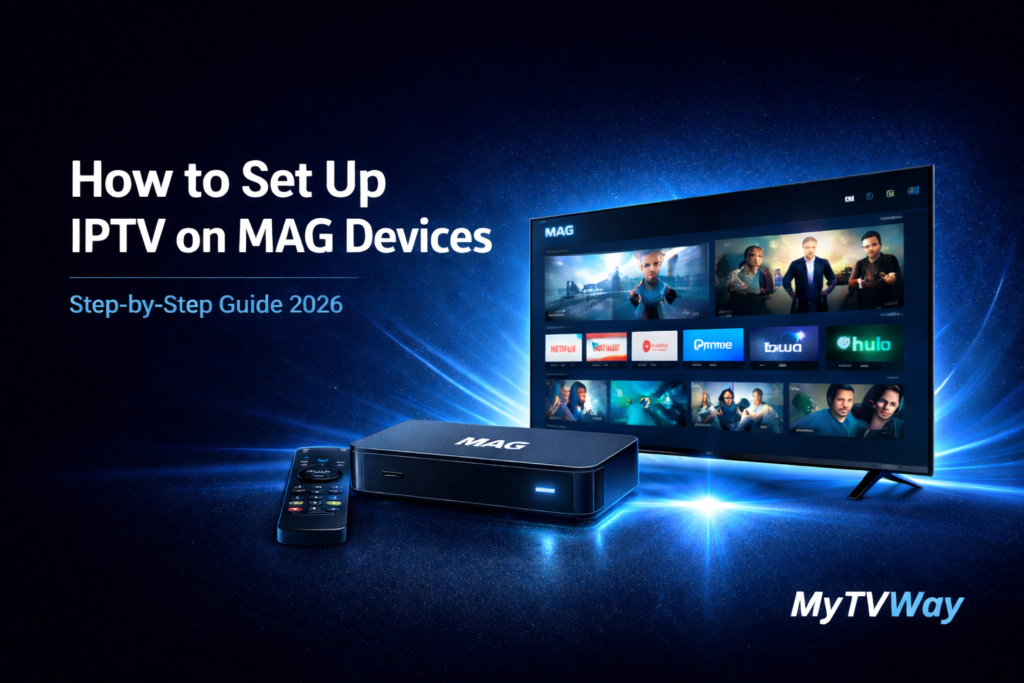
Looking for a complete IPTV MAG Box setup guide? You’ve come to the right place. In this detailed tutorial, we’ll show you exactly how to install IPTV on MAG devices step by step — covering every MAG model including STB, TVIP and Formuler.
Whether you own a MAG 254, MAG 256, MAG 322, MAG 324, MAG 349, MAG 351, MAG 410, MAG 420, MAG 422, MAG 424, MAG 520, MAG 522 or MAG 524, this MAG IPTV guide covers every setting you need. If you’re using a different device, check our Firestick setup guide, Android setup guide, Windows PC setup guide, Smart TV setup guide, iPhone iPad setup guide or Mac setup guide instead.
IPTV MAG Box Setup – Complete Guide 2026
Setting up IPTV MAG Box is straightforward once you know the exact steps. Our IPTV MAG Box guide works on every model.
In this complete tutorial, we’ll walk you through every single setting required to install and configure your MyTVWay UK IPTV subscription on any MAG device. Our team also handles the activation for you — simply send us your MAC address and we’ll set everything up remotely.
Supported IPTV MAG Box Models
Our IPTV MAG Box service works on all Infomir MAG devices and compatible STB set-top boxes:
- MAG 254 — Classic Linux-based IPTV box
- MAG 256 — HEVC support, popular for UK IPTV
- MAG 322 / MAG 322w1 — WiFi built-in version
- MAG 324 / MAG 324w2 — Latest generation with improved performance
- MAG 349 / MAG 351 — 4K streaming support
- MAG 410 — Hybrid Android and Linux STB
- MAG 420 / MAG 422 / MAG 424 — 4K HDR support
- MAG 520 / MAG 522 / MAG 524 — Latest 4K60 HDR10+ models
- TVIP S-Box — 605, 705, 706 models
- Formuler Z — Z7, Z8, Z10, Z11 (via MAG emulation)
- Any compatible STB running portal-based IPTV
What You Need Before Starting
- A MAG Box or compatible STB device
- HDMI cable to connect to your TV
- WiFi or Ethernet internet connection (minimum 20 Mbps)
- An active MyTVWay UK IPTV subscription
- Your MAG Box MAC address (found on the back of the device, starts with 00:1A:79:XX:XX:XX)
Step-by-Step: IPTV MAG Box Installation Guide
Step 1 — Send Us Your MAC Address
Find the MAC address on the back of your MAG device. It starts with 00:1A:79:XX:XX:XX. Send this MAC address to MyTVWay along with your IPTV service order via WhatsApp or email.
Our team will activate your subscription within minutes and send you the portal URL needed for the next steps.
Step 2 — Connect Your MAG Box to the TV
Connect your MAG Box to your TV using an HDMI cable and plug in the power adapter. Power it up and make sure you select the correct HDMI source on your TV remote.
Step 3 — Access the Main Menu
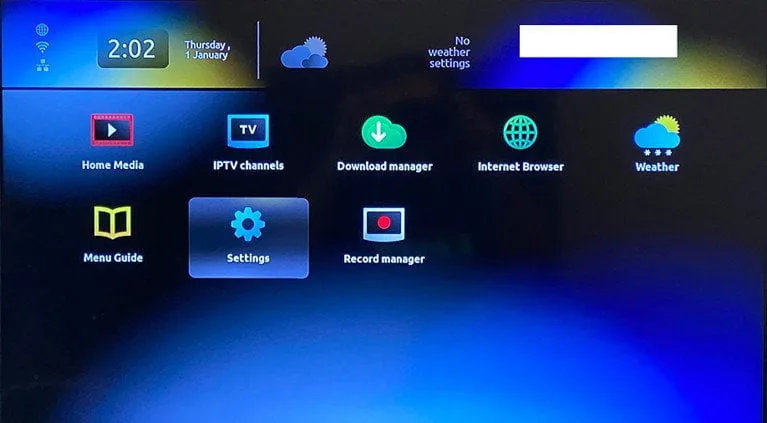
The bootup screen will appear showing the main menu. Navigate to Settings using your remote and press OK.
Step 4 — Open System Settings
From the settings menu, select System Settings and press OK to open the configuration options.

Step 5 — Choose Your Internet Connection
You can connect your MAG Box to the internet via WiFi or Ethernet cable.
⚠️ If you’re using an Ethernet cable, skip steps 6 to 11 and jump directly to Step 12.
Step 6 — Go to Network Settings
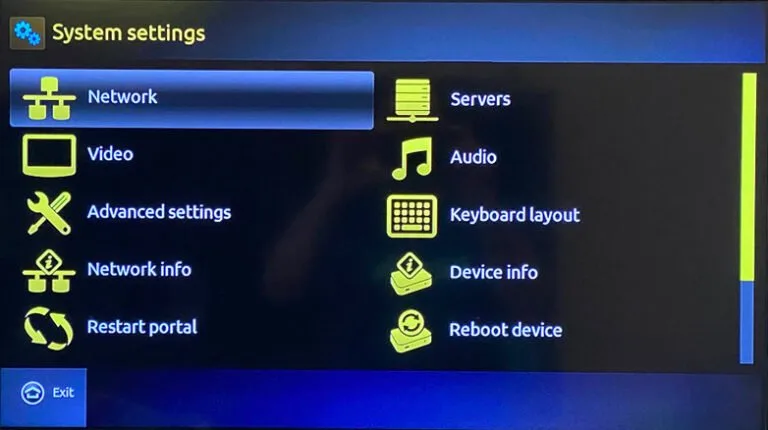
For WiFi connection, navigate to Network from System Settings and press OK.
Step 7 — Select Wireless (WiFi)
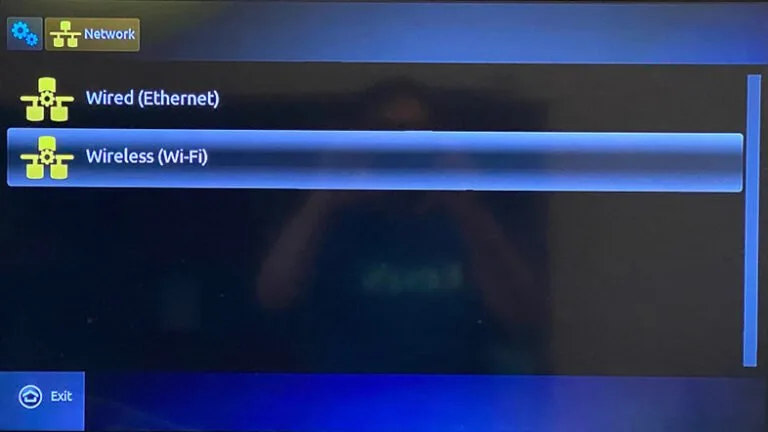
Select Wireless (WiFi) and press OK to continue.
Step 8 — Enable Auto DHCP
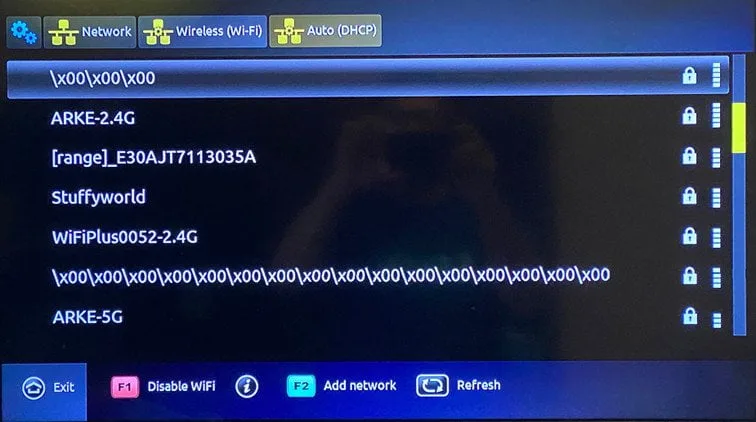
Select Auto (DHCP) and press OK. Wait until the WiFi list appears — this can take a few seconds.

Step 9 — Select Your WiFi Network
Browse the list of available WiFi networks and select your home network. Press OK to continue.
Step 10 — Enter Your WiFi Password
Press the Keyboard button on your remote to bring up the on-screen keyboard. Type your WiFi password carefully.
⚠️ Important: Make sure your password does not contain special characters like ! @ #. Only letters and numbers work properly. Once done, press the Keyboard button again, then OK to save.
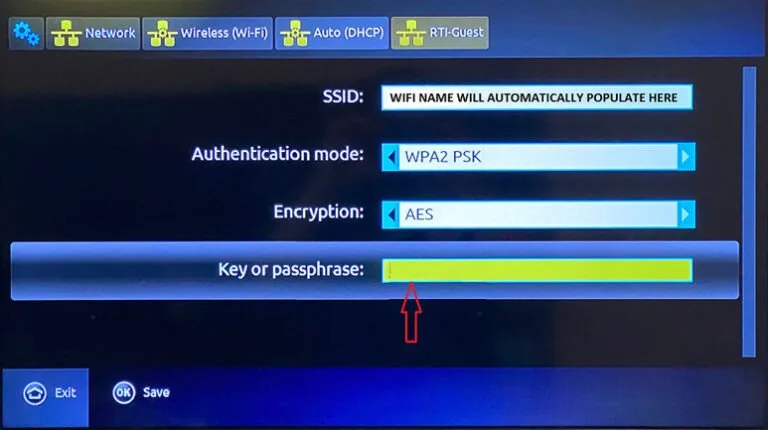
Step 11 — Return to System Settings
Press the Exit button on your remote to go back, then navigate to System Settings once more.
Step 12 — Go to Servers Menu
From System Settings, select Servers and press OK.
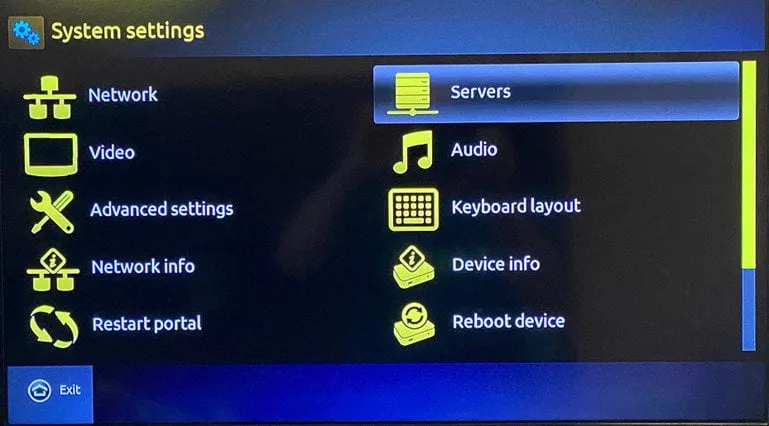
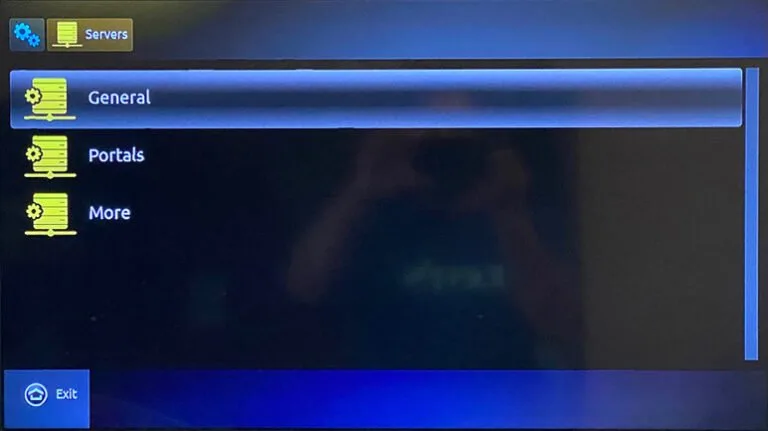
Step 13 — Open General Settings
Select General and press OK to configure the NTP server.
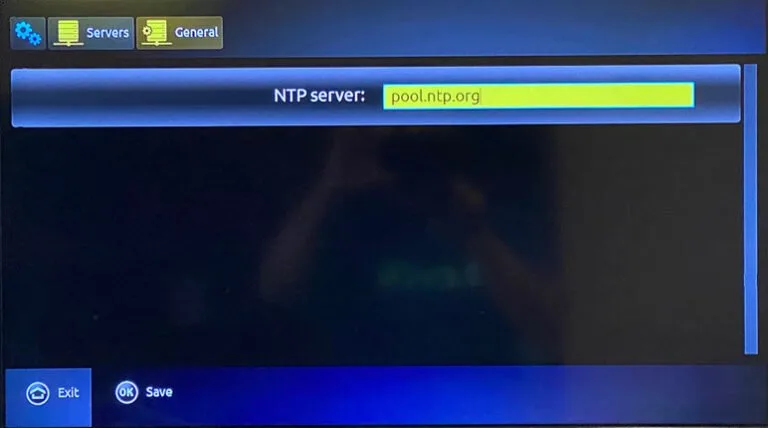
Step 14 — Configure NTP Server
Type the NTP server address pool.ntp.org and press OK to save. This is essential for time synchronization.
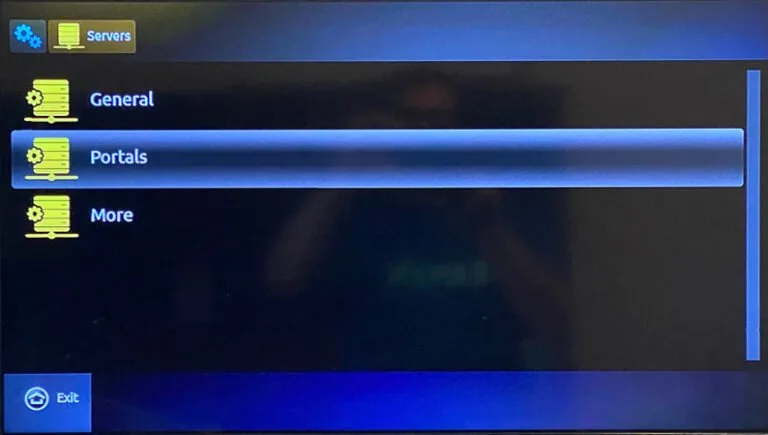
Step 15 — Access Portals Menu
Press the Exit button to go back, then navigate to Portals and press OK.
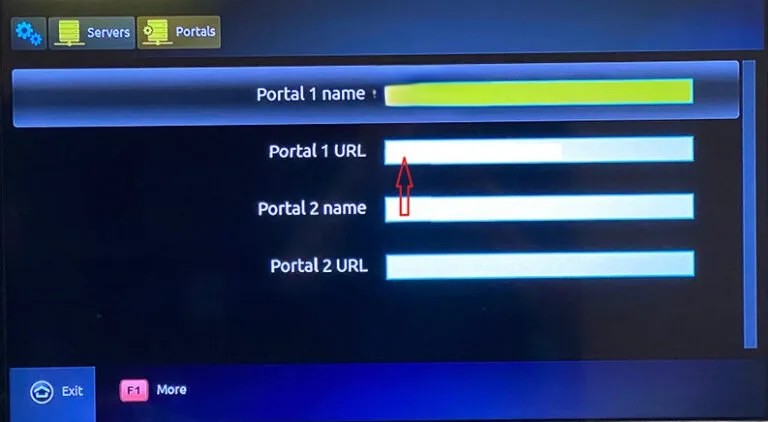
Step 16 — Enter Portal Name and URL
Type the Portal 1 Name as MYONEIPTV and enter the Portal 1 URL that MyTVWay sent you via email or WhatsApp after placing your order. Press OK to save.
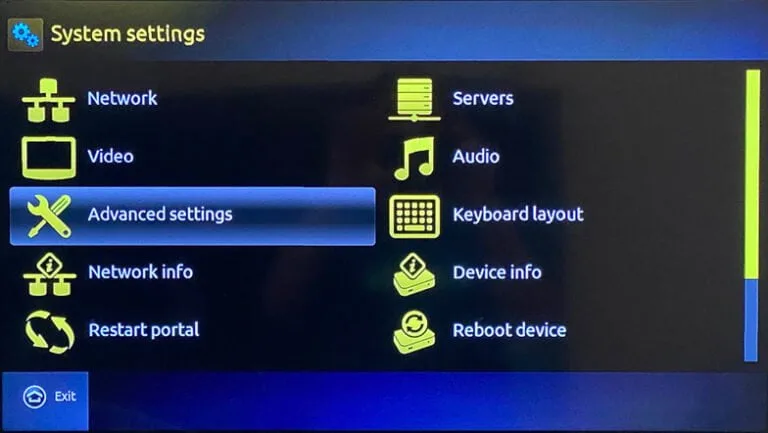
Step 17 — Open Advanced Settings
After saving the portal URL, press Exit to return to the System Settings page. Then select Advanced Settings and press OK.
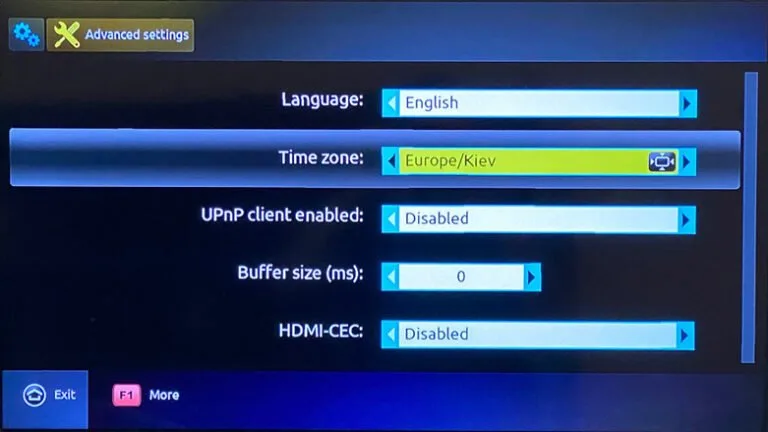
Step 18 — Set Your Time Zone
Use the navigation buttons on your remote to choose your Time Zone. For UK users, select GMT (London). Press OK to save.
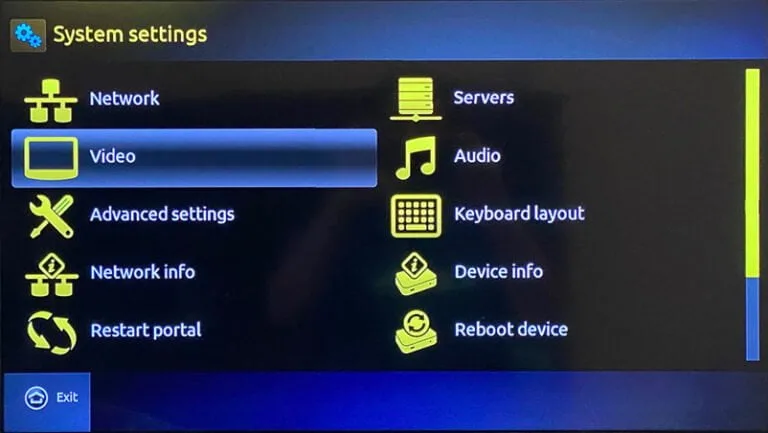
Step 19 — Open Video Settings
Press Exit to go back and select Video, then press OK.
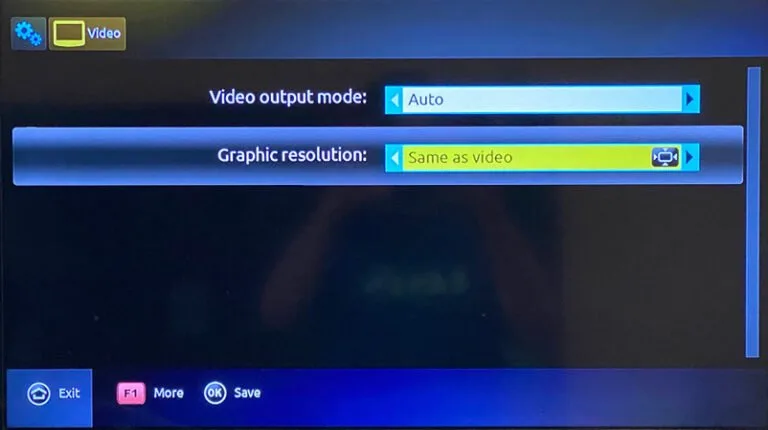
Step 20 — Set Graphic Resolution
Change the Graphic Resolution to Same as Video and press OK to save. Confirm the change again by pressing OK.
🎉 Your IPTV MAG Box Setup is Complete!
If you followed all the steps properly for your IPTV MAG Box setup, reboot your device
and the MyTVWay service should start automatically. You now have access to 50,000+ live UK channels, 180,000+ movies and series in stunning quality with MyTVWay!
Need Help with Setup? We’re Here!
If you encounter any issue during the setup or if you’d prefer to have our team set it up for you, simply contact us via WhatsApp. Our 24/7 support team will guide you step by step or even do the entire setup remotely for free.
We can help you with:
- Activating your MAC address on our servers
- Configuring portal URL and NTP settings
- Troubleshooting connection and playback issues
- Setting up EPG and channel favourites
- Optimizing your video quality
Troubleshooting IPTV MAG Box Issues
Having issues after setup? Here are the most common problems reported by users coming from other IPTV providers — and why they rarely happen with MyTVWay:
- The screen with both view and list is not coming — It goes directly to the main screen. This is a compatibility issue with some IPTV services, not your MAG device.
- Remote not functioning properly — The FW button or navigation not working usually indicates a service compatibility issue, not a remote problem.
- MAG Box not starting in one attempt — Changing batteries doesn’t help because the issue is with the service, not your device.
- Videos not showing full screen — Black bars on top and bottom while other apps show the same videos full screen. This is a service configuration issue.
- Channel browsing malfunctioning — The last viewed TV show appears automatically instead of the channel list. This happens with incompatible IPTV services.
Important: All these issues have nothing to do with your MAG device. If you were able to complete the setup guide using the remote, your device is working correctly. These issues come from the IPTV service provider, not the hardware.
Our MyTVWay customers do not face these issues because our service is 100% compatible with all MAG devices.
Still need help? Contact our 24/7 support team via WhatsApp and we’ll guide you through every step.
Why Choose MyTVWay for IPTV MAG Box?
MyTVWay is the best UK IPTV service for IPTV MAG Box users. Our subscription gives you access to 50,000+ live channels, 180,000+ movies and series in 4K/8K quality.
Unlike other providers, we handle the activation for you — simply send us your MAC address and we’ll set everything up remotely in minutes. No complicated configuration needed.
With Anti-Freeze technology and 99.99% uptime, you’ll enjoy buffer-free streaming on your MAG device every time. Our service is 100% compatible with all MAG models including MAG 254, 256, 322, 324, 349, 351, 410, 420, 422, 424, 520, 522 and 524.
Our plans start from just £11.99/month with instant activation and a 7-day money back guarantee. Get your MyTVWay IPTV MAG Box subscription today!
Looking for setup guides for other devices? Check our UK IPTV installation guide for instructions on Firestick, Android, Windows PC, Smart TV, iPhone and iPad, Mac and more.
Ready to Start Streaming UK IPTV?
Get your MyTVWay subscription today — 50,000+ channels, instant activation, 7-day money back guarantee.
Get Your UK IPTV Plan from £11.99