Looking for a complete IPTV Enigma2 setup guide? You’ve come to the right place. In this detailed tutorial, we’ll show you exactly how to install IPTV on Enigma2 receivers using PuTTY — covering Zgemma, Vu+, Dreambox and all compatible satellite boxes.
Whether you own a Zgemma H2H, H2S, H7, H9 Combo, H9 Twin, H9.2H, H9.2S, H10, Vu+ Duo, Vu+ Solo, Vu+ Uno 4K, Dreambox DM800, DM900, DM920 or any other Enigma2 device, this Enigma2 IPTV guide works on all of them. If you’re using a different device, check our Firestick setup guide, Android setup guide, Windows PC setup guide, Smart TV setup guide, iPhone iPad setup guide, Mac setup guide or MAG Box setup guide instead.
IPTV Enigma2 Setup – Complete Guide 2026
Setting up IPTV Enigma2 is straightforward once you know the exact process. Our IPTV Enigma2 guide works on all devices.
In this complete tutorial, we’ll walk you through every step to install your MyTVWay UK IPTV subscription on any Enigma2 device using PuTTY software. If you prefer, our team can also set it up for you remotely — simply contact us via WhatsApp.
Supported IPTV Enigma2 Devices
Our IPTV Enigma2 service works on all receivers running the Enigma2 operating system:
- Zgemma — H2H, H2S, H5, H7, H9 Combo, H9 Twin, H9.2H, H9.2S, H10
- Vu+ — Duo, Duo2, Solo, Solo2, Solo4K, Uno, Uno4K, Ultimo, Ultimo4K, Zero, Zero4K
- Dreambox — DM800 HD SE, DM800 SE v2, DM820, DM900 UHD, DM920 UHD
- Formuler F-series — F1, F3, F4 Turbo
- GigaBlue — UHD Quad 4K, UHD UE 4K, UHD Trio 4K
- Xtrend ET — ET8000, ET8500, ET10000, ET11000
- Octagon — SF8008, SF4008, SF138
- Any other receiver running OpenATV, OpenPLi, OpenVIX or other Enigma2 images
What You Need Before Starting
- An Enigma2 receiver (Zgemma, Vu+, Dreambox or similar) connected to the internet
- A Windows PC or Mac with PuTTY software (or Terminal on Mac)
- Your Enigma2 device and PC connected to the same network
- An active MyTVWay UK IPTV subscription with your playlist URL
Step-by-Step: IPTV Enigma2 Installation Guide
Step 1 — Find Your Enigma2 IP Address
On your Enigma2 receiver, navigate to:
Menu → Settings → System → Network → Device Setup → Adapter Settings
Look for the IP address — it typically starts with 192.168… (e.g., 192.168.1.100). Write it down as you’ll need it in the next steps.
⚠️ Make sure your Enigma2 device and your computer are connected to the same network (same WiFi or router).
Step 2 — Download PuTTY Software
On your Windows PC, open your browser and visit the official PuTTY website to download the software:
Click Download PuTTY and choose the version that matches your system (64-bit or 32-bit). Save the file to your Desktop for easy access.
💡 Mac users: You don’t need PuTTY. Simply open the Terminal app and use the command: telnet [your-enigma2-ip]
Step 3 — Open PuTTY and Enter Connection Details
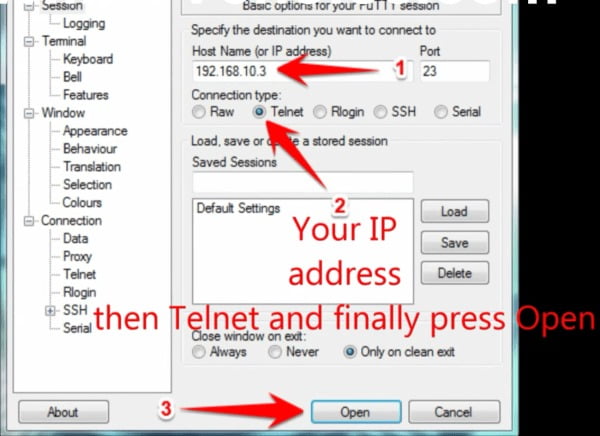
Launch PuTTY. In the configuration window, fill in the fields:
- Host Name (or IP address): Enter your Enigma2 IP address from Step 1
- Port: 23
- Connection type: Telnet
Click the Open button at the bottom to start the connection.
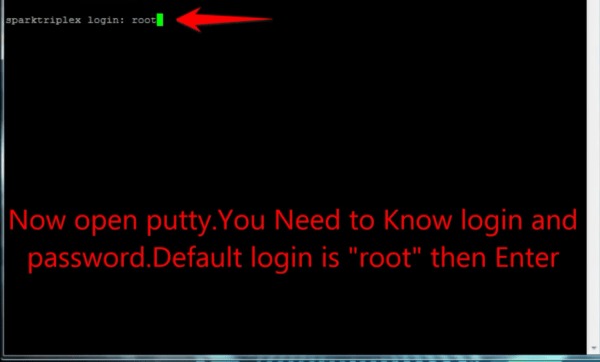
Step 4 — Login with Default Credentials
A black terminal window will open asking for login credentials. The default username and password for most Enigma2 devices are:
- Login as: root
- Password: root
Type root, press Enter, then type root again as the password and press Enter.
⚠️ Note: When typing the password, you won’t see any characters on screen — this is normal for security reasons.
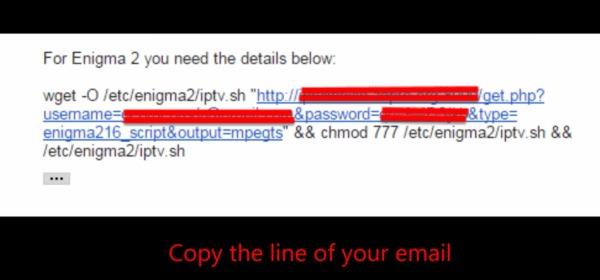
Step 5 — Copy Your MyTVWay URL Line
Open the confirmation email or WhatsApp message you received from MyTVWay after your subscription. You’ll find a command line URL ready to be executed.
Select the entire URL line and copy it (Ctrl+C on Windows).
💡 If you can’t find your URL, contact us via WhatsApp and we’ll resend it instantly.
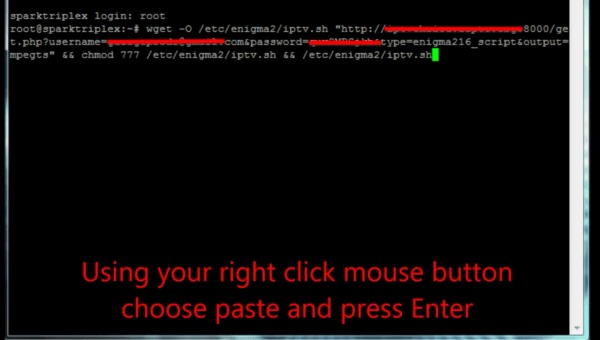
Step 6 — Paste the URL and Press Enter
Go back to the PuTTY terminal window. To paste the URL, use right-click with your mouse (do NOT use Ctrl+V — it doesn’t work in PuTTY).
The URL will appear in the terminal. Press Enter to execute the command and install the MyTVWay channel list on your Enigma2 device.
Wait a few seconds while the channels are being downloaded and installed.
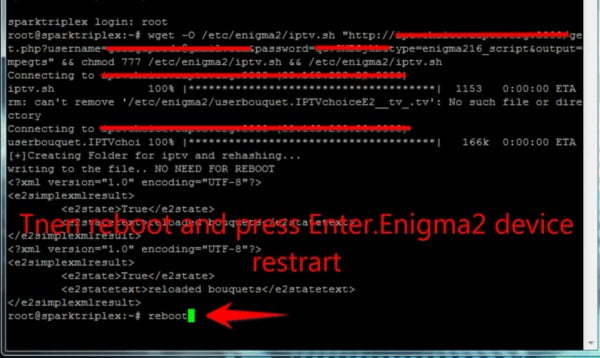
Step 7 — Type Reboot to Restart
Once the URL command has finished executing, type reboot in the terminal and press Enter. Your Enigma2 device will automatically restart.
This reboot is essential for the new channel list to be loaded properly on your receiver.
Step 8 — Wait for Device to Restart
Your Enigma2 receiver will go through its normal reboot process. This usually takes between 30 seconds and 2 minutes depending on your device model.
Be patient and wait for the device to fully boot back up to the main screen.
Step 9 — Access Your IPTV Enigma2 Folder
Once your device is back on, navigate to your channel list (press TV or menu button). You’ll now find a new IPTV folder containing all your MyTVWay channels.
Browse through the categories — UK Channels, US Channels, Sports, Movies, Kids, News and many more. Select any channel to start streaming!
🎉 Your IPTV Enigma2 Setup is Complete!
Congratulations! You have successfully completed your IPTV Enigma2 setup.You now have access to 50,000+ live UK channels, 180,000+ movies and series in stunning quality with MyTVWay!
Need Help with Setup? We’re Here!
If you encounter any issue during the setup or if you’d prefer to have our team set it up for you, simply contact us via WhatsApp. Our 24/7 support team will guide you step by step or even do the entire setup remotely for free.
We can help you with:
- Finding your Enigma2 IP address
- Installing and configuring PuTTY
- Remote installation via TeamViewer or AnyDesk
- Fixing login or password issues
- Troubleshooting channel list problems
- Setting up EPG and picons (channel logos)
Don’t hesitate — our team loves helping Enigma2 users get streaming fast!
Troubleshooting IPTV Enigma2 Issues
Having issues with your IPTV Enigma2 setup?
Here are the most common problems and solutions:
- PuTTY connection refused — Make sure Telnet is enabled on your Enigma2 device. Go to Menu → Plugins → Enable Telnet. Also verify your IP address is correct.
- Wrong password error — Some Enigma2 images have a different default password. Try leaving the password empty and pressing Enter, or try “dreambox” instead of “root”.
- URL not executing — Make sure you copied the entire URL line without any extra spaces. Right-click to paste in PuTTY — Ctrl+V does not work.
- IPTV folder not appearing after reboot — The channel list might still be loading. Wait 2-3 minutes then refresh your channel list by pressing the bouquet button.
- Channels buffering or freezing — Ensure your internet speed is at least 20 Mbps. For Enigma2 receivers, a wired ethernet connection is always better than WiFi.
- Can’t find IP address on Enigma2 — Different Enigma2 images have slightly different menus. Try: Menu → Information → Network, or Menu → System → Network Configuration.
Still need help? Contact our 24/7 support team via WhatsApp and we’ll guide you through every step.
Alternative Methods for IPTV Enigma2 Setup
If you’re not comfortable using PuTTY, here are other Enigma2 IPTV methods:
- Via FTP (FileZilla) — Download FileZilla, connect to your Enigma2 IP with root credentials on port 21, then upload the bouquet file directly.
- Via OpenWebif (Web Interface) — Open your browser and go to http://[enigma2-ip]. Login with root credentials and use the web interface to install bouquets.
- Via DreamBoxEdit (Windows) — Download DreamBoxEdit to edit and upload bouquets with a graphical interface.
- Via E-Channelizer — Another excellent tool to manage Enigma2 channel lists with drag-and-drop support.
- Remote setup by MyTVWay team — The easiest option! Just contact us via WhatsApp and we’ll install everything for you remotely via TeamViewer or AnyDesk.
All of these methods work with your MyTVWay UK IPTV subscription. Contact us via WhatsApp for help with any method.
Why Choose MyTVWay for IPTV on Enigma2?
MyTVWay is the best UK IPTV service for IPTV Enigma2 users. Our subscription gives you access to 50,000+ live channels, 180,000+ movies and series in 4K/8K quality.
We offer complete support for all Enigma2 devices including Zgemma, Vu+, Dreambox, Formuler, GigaBlue, Xtrend and more. Our team can set up your device remotely via TeamViewer or AnyDesk if you prefer — completely free.
With Anti-Freeze technology and 99.99% uptime, you’ll enjoy buffer-free streaming on your satellite receiver every time. Our service is 100% compatible with all Enigma2 images including OpenATV, OpenPLi, OpenVIX, PurE2, Blackhole and more.
Our plans start from just £11.99/month with instant activation and a 7-day money back guarantee. Get your MyTVWay IPTV Enigma2 subscription today!
Looking for setup guides for other devices? Check our UK IPTV installation guide for instructions on Firestick, Android, Windows PC, Smart TV, iPhone and iPad, Mac, MAG Box and more.
Ready to Start Streaming UK IPTV?
Get your MyTVWay subscription today — 50,000+ channels, instant activation, 7-day money back guarantee.
Get Your UK IPTV Plan from £11.99